How to send a digital signed and encrypted email - Microsoft Outlook 2007
Requirements
Before configuration, make sure that your digital ID (also called digital certificate) is already installed. If the certificate has not been installed, then you need to get a digital ID
Getting started
Open Microsoft Outlook 2007 -> Tools -> Trust Center -> Email Security -> Encrypted Email -> Settings… -> Choose your Personal Certificate (Signing Certificate) -> OK
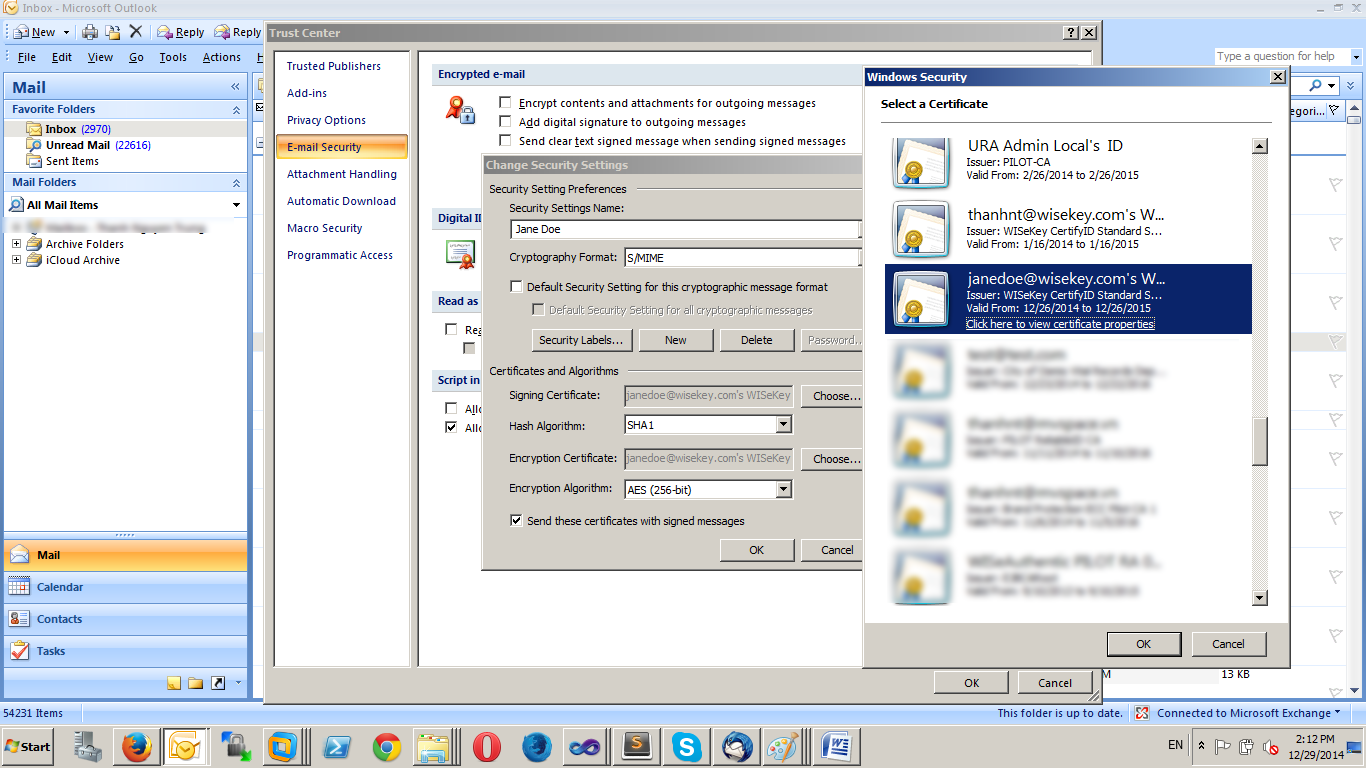
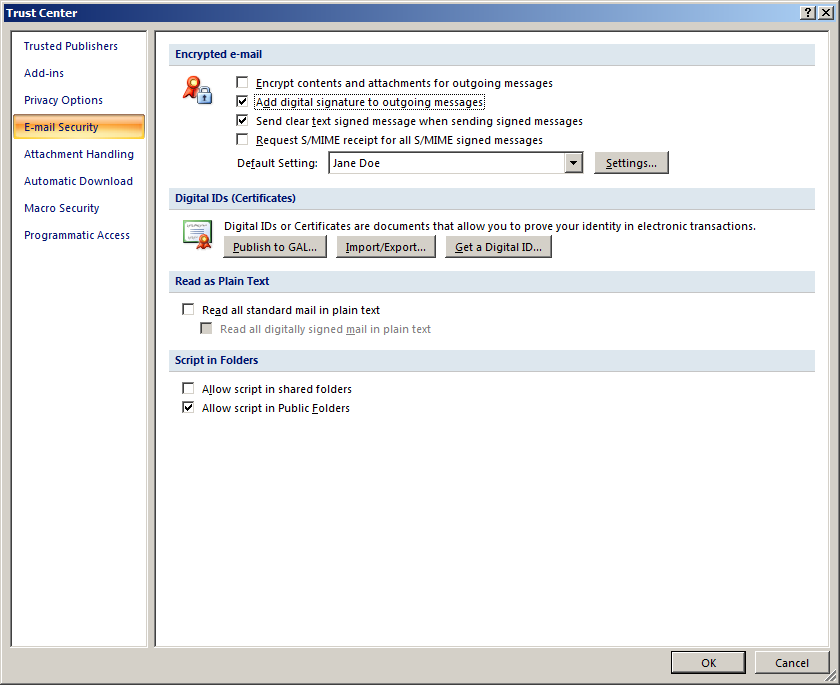
And then set options like below:
Now you should be able to compose a signed email, in the Options tab
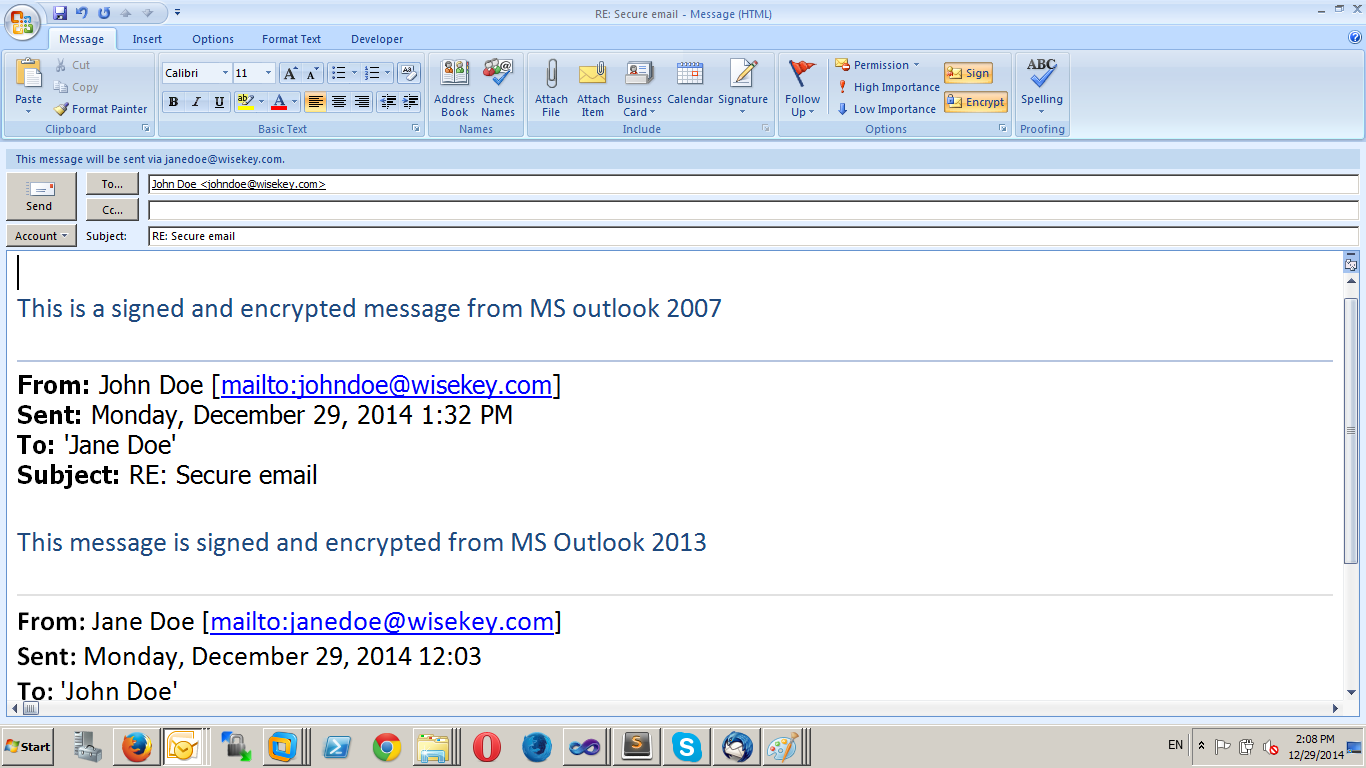
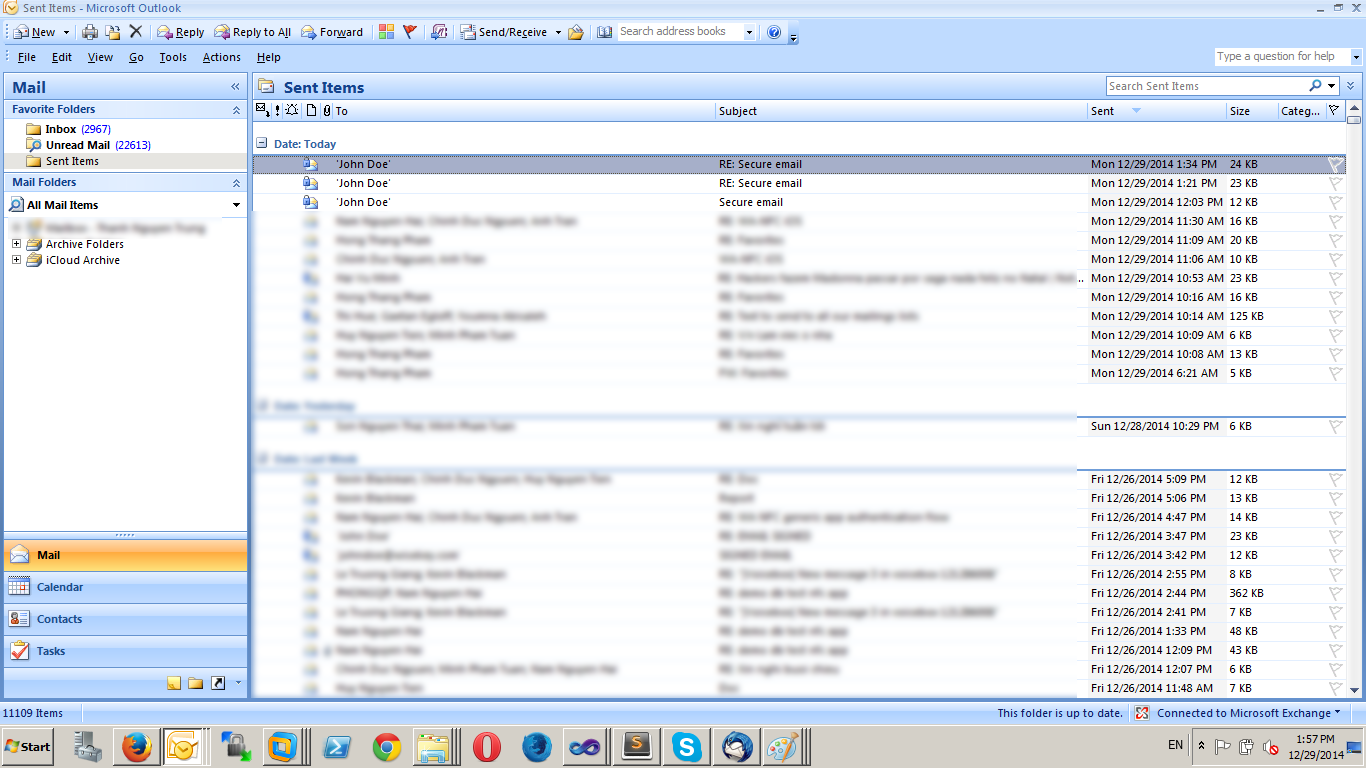
Note: In case you want to send an encrypted email to others, you need to ask the recipients to send you SIGNED emails first; this will help collect and install PUBLIC KEYs (also presented in recipients’ certificates) in your system. After the email is sent, you should see the SIGNATURE (and/or ENCRYPTED) symbol like below in the sent folder: